

The iPhone 13 Pro and iPhone 13 Pro Max feature a rather stunning macro mode. I mean, look at this shot.
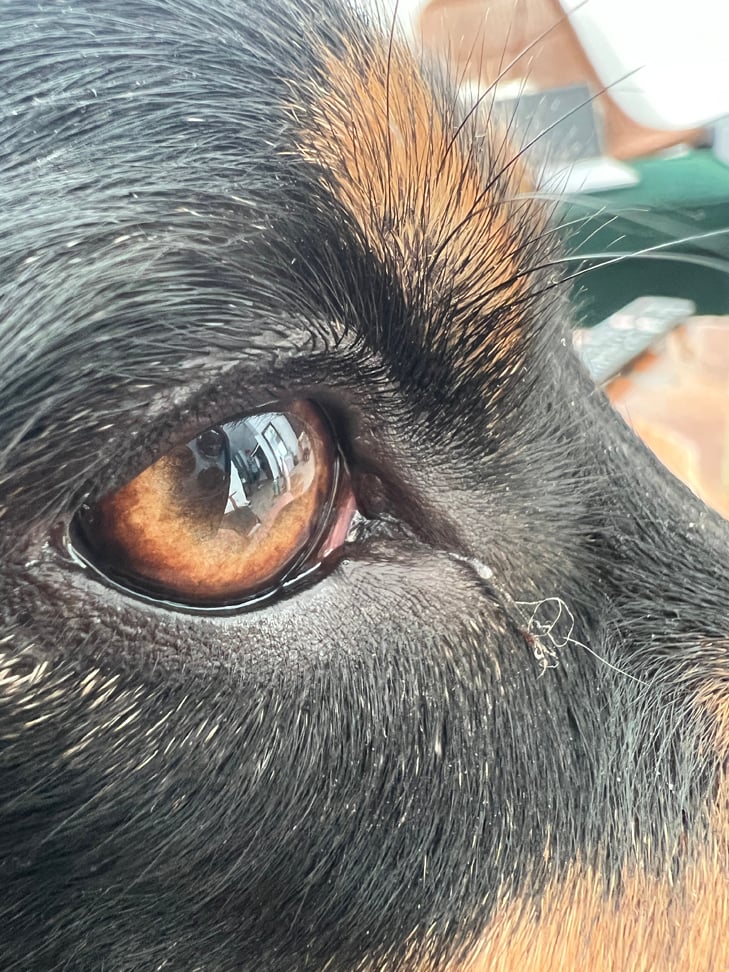
Striking.
It just has one annoying flaw. If you get too close to a subject, the camera can automatically swap to macro mode, even if you don't want it to. Sometimes it can even have a moment and flicker between the primary lens and macro mode.
Thankfully with the release of iOS 15.1, you can fix this. The newly released software update gives you the option to disable automatic switching, so you won't end up in macro mode if you're not trying to take a macro shot.
If you want to solve your camera woes, you'll need to be running iOS 5.1 first. If you need help updating, follow these steps:
- Open the Settings app
- Tap General
- Tap Software Update and follow the prompts
It's about a 1.5GB download.
Once iOS 15.1 is installed, follow these steps to disable automatic macro mode:
- Open the Settings app
- Scroll down to and tap on Camera
- Toggle Auto Macro to off
With Auto Macro off, you'll need to swap to the ultra-wide lens in the camera app to take a macro shot instead. Just get close enough to your subject, tap on it to get focus right, and then take the shot. Just be aware that you can't get quite as close with Auto Macro off. You may need to switch it back on for some photos if you want to get very fine details. Hopefully Apple creates a dedicated toggle in the camera app soon.
The other major new feature in iOS 15.1 is SharePlay, which lets you watch or listen to content in sync with friends while on a FaceTime call. Supported apps include Apple TV, Apple Music, and Fitness+. SharePlay will also work with non-Apple apps, including Disney+, Paramount+, and TikTok. FaceTime will also let you screen share as part of SharePlay.
iOS 15.1 also includes ProRes video support for the iPhone 13 Pro and iPhone 13 Pro Max, Mandarin Chinese support in the Translate app, and a number of bug fixes.
Alex Choros

Related Articles


