
- Great entry-level price
- Excellent speedy guided setup
- NBN 2000 compatible
- Manual firmware updates
- Inconsistent 2.4GHz performance
- Temperamental uptime
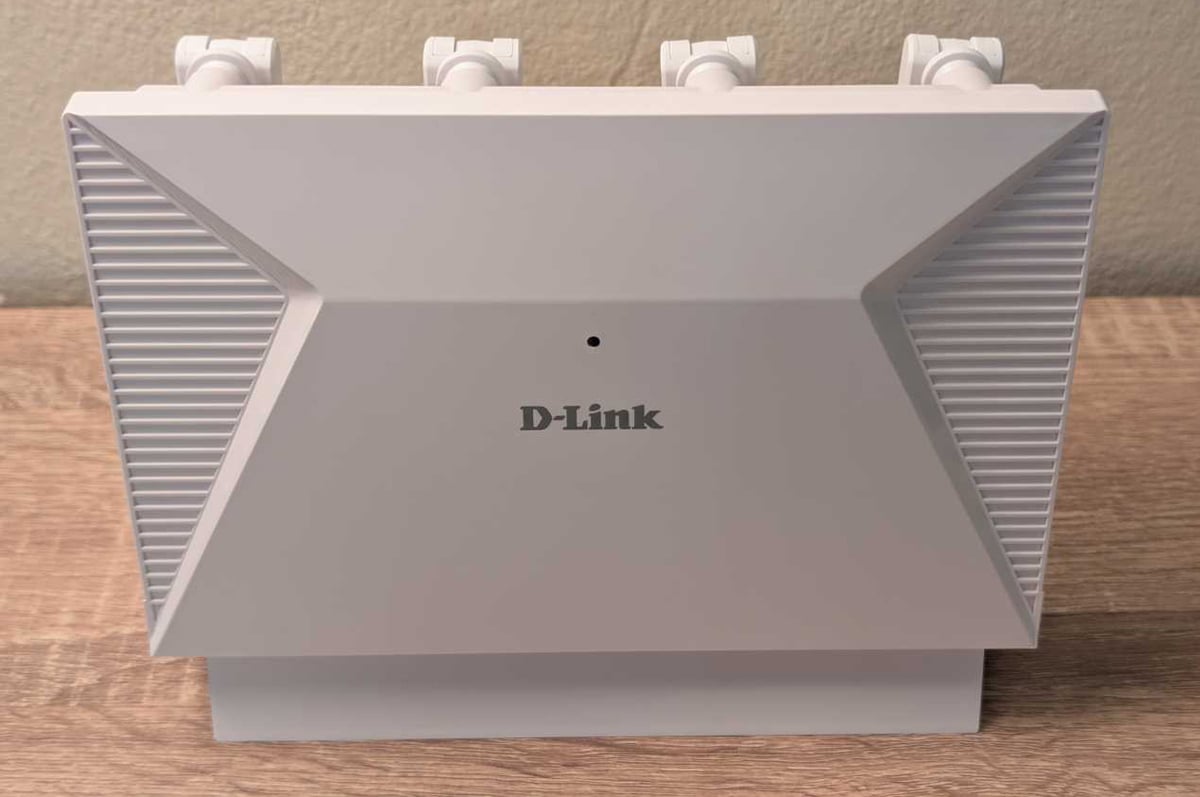
Cheap WiFi 7 routers are proving to be more impressive than their older WiFi 6 siblings. For around $300, you can get the impressively feature-rich Asus RT-BE58U router from a retailer or the Arcadyan HWG2025 from Vodafone or iiNet. But there are also a trio of cheap WiFi 7 options around $250: the Telstra Smart Modem 4 modem-router, the Netgear Nighthawk RS100 router, or the D-Link DIR-BE3602 router.
While the Telstra Smart Modem 4 is the cheapest of the lot (especially if you're a new Telstra customer), it's only capable of gigabit internet, whereas the RS100 and DIR-BE3602 can both handle plans beyond NBN 1000. Of those, the D-Link router is around $10 cheaper, but those meagre savings may not be enough to justify it over the Netgear RS100.
Before I get into the full D-Link DIR-BE3602 review, check out these popular best NBN plans from our database.
|
#1
|
Dodo

FTTP, HFC
Editor's Pick
nbn500 Unlimited Plan
$62.99/mth
Min. cost $62.99
|
|
#2
|
SpinTel

All Fixed Line nbn®
Home Starter 25/10
$41/mth
Min. cost $41
|
|
#3
|
Tangerine Telecom

FTTP, HFC
Speedy Max NBN 500/50
$59.90/mth
Min. cost $59.90
|
|
#4
|
Superloop

FTTP, HFC
Family Max nbn500/50
$74/mth
Min. cost $74
|
|
#5
|
amaysim

FTTP, HFC
NBN500
$50/mth
Min. cost $50
|
|
#6
|
TPG

FTTP, HFC
nbn Home Fast Unlimited Plan
$74.99/mth
Min. cost $74.99
Link not supplied
|
|
#7
|
Flip

All Fixed Line nbn®
Editor's Pick
Unlimited Premium nbn25
$48/mth
Min. cost $48
|
|
#8
|
iiNet

FTTP, HFC
nbn500 Liimitless
$69.99/mth
+ $10 Upfront
Min. cost $79.99
Link not supplied
|
|
#9
|
Exetel

FTTP, HFC
One Plan 500/50
$80/mth
Min. cost $80
|
|
#10
|
Belong

FTTP, HFC
NBN Fast – Unlimited
$59/mth
Min. cost $59
|
Home networking equipment is tested in a first-floor apartment with thick WiFi-interfering walls using an FTTC NBN 100/20 connection. The networking device is deliberately placed at one end of the apartment (instead of a central location) to test wireless range and penetration. Basic speed tests are performed at multiple locations inside and outside the apartment, first with a Synology RT6600ax router and then with the networking device being reviewed for comparative results. Everyday, internet tests are also performed with relevant results mentioned for streaming, web browsing, online gaming, video and voice calls, as well as downloading large files and transferring them across devices on the local network.
What we like about the D-Link DIR-BE3602
The price is right for the D-Link DIR-BE3602. At $249.95 RRP, only the Telstra Smart Modem 4 is cheaper at $240 RRP. Technically, the TP-Link Archer BE230 and the TP-Link Deco BE25 are also cheaper, but only by 95 cents. If you're a new Telstra customer, the Telstra Smart Modem 4 is a no-brainer thanks to its versatility, including mobile backup and home phone support. But if you want a WiFi 7 networking device you can take with you, the DIR-BE3602 is the better pick.
That's because, unlike the Telstra Smart Modem 4, the DIR-BE3602 has a 2.5Gbps internet port, meaning it can handle NBN 2000 plans. Additionally, while Telstra doesn't publicly advertise the WiFi 7 speeds for its fourth-gen modem-router, D-Link isn't shy of its max combined 3.6Gbps wireless speeds. In best-case scenarios, that breaks down to 2882Mbps speeds on the faster, shorter-range 5GHz WiFi band and 688Mbps speeds on the slower, longer-range 2.4GHz band.
As is the trend at this price point, the DIR-BE3602 is a dual-band WiFi 7 router, so it doesn't have the speedier 6GHz band introduced with WiFi 6E and continued with pricier WiFi 7 networking gear. Given 6GHz is only really for super-short-range devices, it's not a huge loss. And unlike the Telstra Smart Modem 4 or the Arcadyan HWG2025, the D-Link router had better WiFi 7 5GHz wireless coverage inside my interference-prone apartment. Practically speaking, that meant consistently low latency throughout my apartment, and well-preserved download/upload speeds on the 5GHz band.
If you're eyeing off the DIR-BE3602 as a budget-friendly WiFi 7 router, you should be impressed by how fast and painless it is to set up. I typically call any setup under 10 minutes fast. The DIR-BE3602 initial configuration was done in around three minutes. Even if you are with a PPPoE NBN provider that needs a username and password, the companion app will guide you through the necessary steps. As long as you download the D-Link Wi-Fi Assist app ahead of setup, you'll be helped through the initial configuration process. There's a QR code in the quick-start guide to download the app, and another QR code on the back (not the bottom; thanks, D-Link) of the router to sync the app and DIR-BE3602. Every other initial configuration step is either automated or guided, and you'll be prompted to change your WiFi username and password and set an admin password.
Most homes should have no issues monitoring and tweaking basic settings via the D-Link Wi-Fi Assist app. It's a responsive companion app with a user-friendly layout and logical tweak locations. I appreciate that the app also has a smattering of more advanced features, like the option to update the IP address as well as guest network and parental controls.
During my tests, I had no issues with everyday performance, including online gaming, voice chatting, video calls, and streaming video to multiple devices. While it was strangely disabled by default, Quality of Service (QoS) is easy enough to find in the web portal so you can toggle it on. Do a speed test to determine your max download and upload speeds, input those settings (in Kbps rather than Mbps), and leave the Mode Selection to 'Auto' for uninterrupted online gaming, video streaming, and web browsing. Once enabled, QoS worked well to automatically preserve traffic for streaming, gaming, and voice/video calls.
I have a soft spot for Quality of Service (QoS). That's because, at its best, QoS automatically recognises priority internet tasks and allocates finite download/upload speed to latency- and bandwidth-sensitive tasks. If you like to play games online or stream videos in undisturbed full resolution, QoS kicks in when someone starts trying to download a file at full speed. Their total download speed will be capped relative to the bandwidth required for full-resolution streaming and undisturbed online gaming.
The web portal is a great place to check if you have any connectivity issues. Unlike other web portals that only tell you that you're either online or offline, the DIR-BE3602 has network diagnostics on the home page. Click on either 'Network Diagnostics' or the cross/tick to perform a network test. It'll tell you where potential connectivity issues might be, and it'll even judge you for the strength of your 2.4GHz/5GHz WiFi password/s (ahem).
If you have a larger home or one prone to WiFi interference, the DIR-BE3602 supports mesh expansion. Find a compatible D-Link mesh product, then either connect via Ethernet or use the WPS button to sync the mesh expander with your D-Link router.
Routers, modem-routers and mesh WiFi systems are compatible with most NBN connections, including FTTP, HFC, FTTC, Fixed Wireless and Sky Muster satellite. All of these NBN technologies use respective network termination devices (NTDs), which is a fancy term for “connection box” or “modem”. If you live in an FTTB or FTTN home, you’ll need a modem-router to get online. You can still connect a router or mesh WiFi system to a modem-router, but the modem-router first needs to be in bridge mode so it can then connect to a router or mesh WiFi system.
What we dislike about the D-Link DIR-BE3602
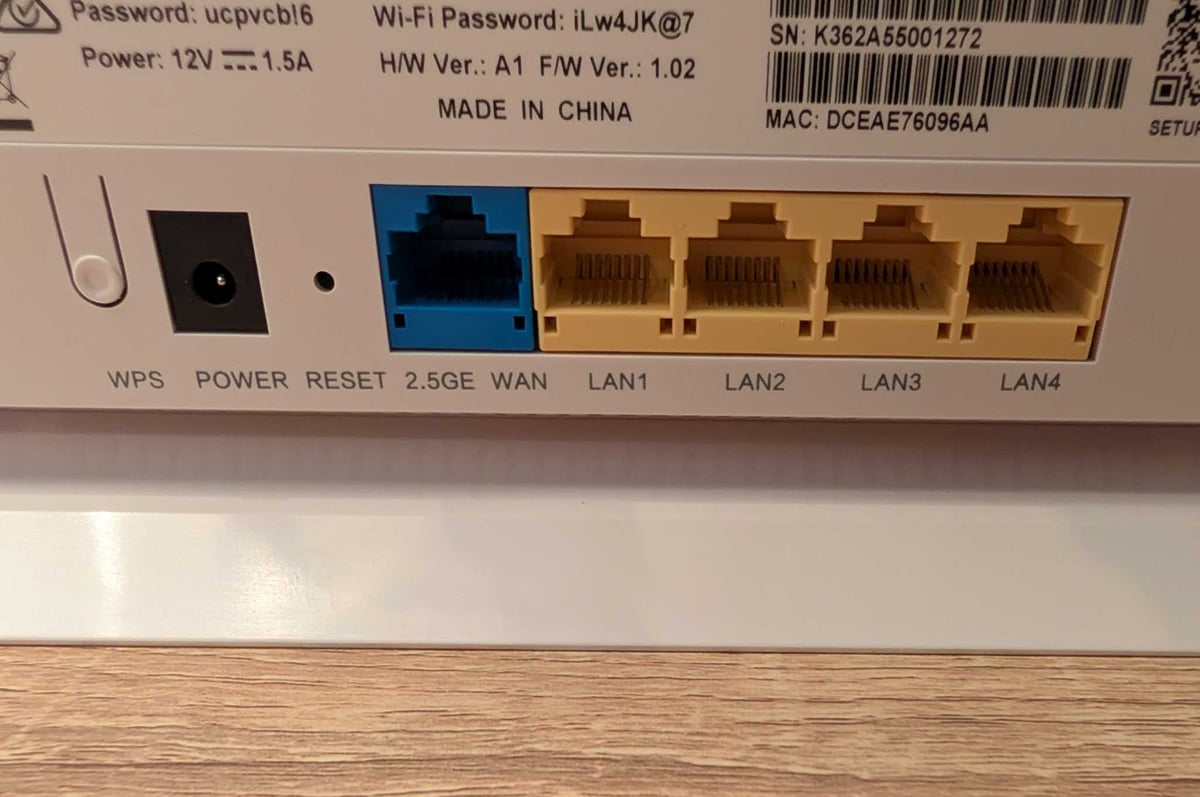
Let’s get the minor gripes out of the way first. Most of the networking gear I've reviewed has followed a trend of red WAN (internet) ports and yellow LAN (local) Ethernet ports. The included Ethernet cable is typically red to indicate it should be used with the internet port and your NBN connection box. But the D-Link DIR-BE3602 has a blue WAN port, yellow LAN ports, and a yellow Ethernet cable, which some people may confusingly use to connect a LAN port to their NBN connection box.
Sure, I connect Ethernet cables on autopilot, but it's odd for what's otherwise such a straightforward onboarding process to have colour-coding confusion at the starting line. It's great to see parental controls, but they have to be set on a per-device basis. While not uncommon, that's made trickier with the DIR-BE3602's hit-or-miss approach to device identification, which may necessitate figuring out a device's MAC address to set up the appropriate controls.
It was odd for me that settings like QoS and multi-link operation (MLO) were off by default and weren't simple toggles inside the companion app. More perplexing was the reality that MLO didn't appear to work in my tests, even after I toggled it on. Other MLO networking gear shows concurrent 5GHz and 2.4GHz connections when I test on my Google Pixel 10 Pro XL, but my tests with the DIR-BE3602 only showed one band or the other.
QoS is one of the best user-friendly features for all WiFi users, but MLO is a new user-convenience feature that's new to WiFi 7. Short for 'multi-link operation', MLO lets WiFi 7 devices on a WiFi 7 network connect to multiple wireless bands simultaneously. The benefit of these devices is that they get faster speeds, lower latency, and better reliability, whereas older WiFi devices can only connect to the 5GHz or 2.4GHz band (WiFi 6E devices can also connect to 6GHz).
That MLO weirdness was after a firmware update, too, which I had to perform manually because the DIR-BE3602 seemingly isn't capable of automated updates. It doesn't help that the description used for manual firmware updates are confusing. I figured that the DIR-BE3602 might've been updating the firmware during an unprompted restart, but that wasn't the case. Those unprompted restarts happened a couple more times, and always when I was clicking around inside the web portal. Given I wasn't actively changing and saving settings, it made me avoid the temperamental web portal for fear of kicking off another inadvertent temporary internet outage.
This temperamentality extended to certain wireless devices, too. While it was connected to the WiFi, I couldn't get the Google Nest Hub in my kitchen to accept any videos cast to it. Similarly, my Asus ROG Xbox Ally X and HP OmniBook Ultra Flip 14 worked one day, then refused to connect to WiFi the next. I was able to fix both by forgetting the WiFi SSID, then reconnecting. The more consistent unreliability was performance on the 2.4GHz wireless band. I tested across multiple devices but couldn't get a speed test to finish in my admittedly interference-prone study, which wasn't the case for any other cheap WiFi 7 networking gear I've tested.
That's despite the 2.4GHz signal strength initially holding at "Good" (not "Poor") before the dropouts. Strangely, the DIR-BE3602 managed to complete a speed test at my garage test location, which forces the WiFi to punch through multiple internal walls and an external wall. Still, even at its best, the 2.4GHz band had a 35% decrease in download speeds: from 89.4Mbps to 58.1Mbps. That's okay for anyone on an NBN 12, NBN 25, or NBN 50 plan, but it's a noticeable hit for anyone on NBN 100 or above.
D-Link DIR-BE3602 – Final Thoughts
The D-Link DIR-BE3602 is far from a bad entry-level router, but it's made to look worse by better alternatives. If you're with Telstra, choose the Telstra Smart Modem 4. For TPG, iiNet, and Vodafone customers, the Arcadyan HWG2025 is a great pick. And even if you want a cheap WiFi 7 router you can take between NBN providers, the Netgear Nighthawk RS100 justifies its $10 pricier RRP with better overall performance and reliability.
Some of the more frustrating quirks of the DIR-BE3602 may be patched: finicky parental controls, seemingly AWOL MLO, and uptime reliability when browsing the web portal. But you'll have to manually source a firmware update to see if that changes, and it's less likely the 2.4GHz performance will improve with future updates.
We consider several factors when reviewing networking equipment, including:
- Type: Router, modem-router or mesh WiFi system. Supported NBN technologies and plan speeds.
- Design: Size, weight and standing options. Internal or external antennae. Available ports, WiFi version, and single, dual or triband wireless.
- Setup: Plug-and-play configurations vs laborious setup. Companion apps and guided setups are a plus.
- Performance: Ethernet and WiFi speed tests for downloads, uploads and latency. Real-time latency test for online gaming, VoIP and/or video calls. Plus, everyday use like downloading, uploading, browsing and streaming.
- Versatility: Band steering (single SSID), quality of service and other features. Ease of configuration, plus mesh expansion.
These are the most popular NBN 50 plans with WhistleOut users this week:
|
#1
|
Dodo
All Fixed Line nbn®
Editor's Pick
nbn50 Unlimited Plan
$57.99/mth
Min. cost $57.99
|
|
#2
|
amaysim
All Fixed Line nbn®
NBN50
$45/mth
Min. cost $45
|
|
#3
|
Tangerine Telecom
All Fixed Line nbn®
Value Plus NBN 50/20
$64.90/mth
Min. cost $64.90
|
|
#4
|
TPG
All Fixed Line nbn®
nbn50 Unlimited Plan
$69.99/mth
Min. cost $69.99
Link not supplied
|
|
#5
|
Aussie Broadband

All Fixed Line nbn®
Value nbn - Unlimited
$70/mth
Min. cost $70
|
|
#6
|
Superloop
All Fixed Line nbn®
Extra-value nbn50/20
$69/mth
Min. cost $69
|
|
#7
|
iiNet
All Fixed Line nbn®
nbn50 Liimitless
$69.99/mth
+ $10 Upfront
Min. cost $79.99
Link not supplied
|
|
#8
|
Belong
All Fixed Line nbn®
NBN Standard Plus – Unlimited
$55/mth
Min. cost $55
|
|
#9
|
Kogan Internet

All Fixed Line nbn®
Silver Unlimited
$69.90/mth
Min. cost $69.90
|
|
#10
|
Flip
All Fixed Line nbn®
Unlimited Family nbn50
$68/mth
Min. cost $68
|
Nathan Lawrence
Freelance Contributor

Find a better internet plan
Thousands of internet plans unpacked. All the facts. No surprises.

Related Articles


Internet Plans by State
- Internet Plans in ACT
- Internet Plans in NSW
- Internet Plans in NT
- Internet Plans in QLD
- Internet Plans in SA
- Internet Plans in TAS
- Internet Plans in VIC
- Internet Plans in WA


![[Hand-Picked] Best internet providers in Australia](https://r3.whistleout.com.au/public/images/articles/2026/07/man-and-woman-with-laptop-on-green-couch.jpg?w=280&h=280&usm=20&usmrad=0.8&fit=crop "[Hand-Picked] Best internet providers in Australia")

