
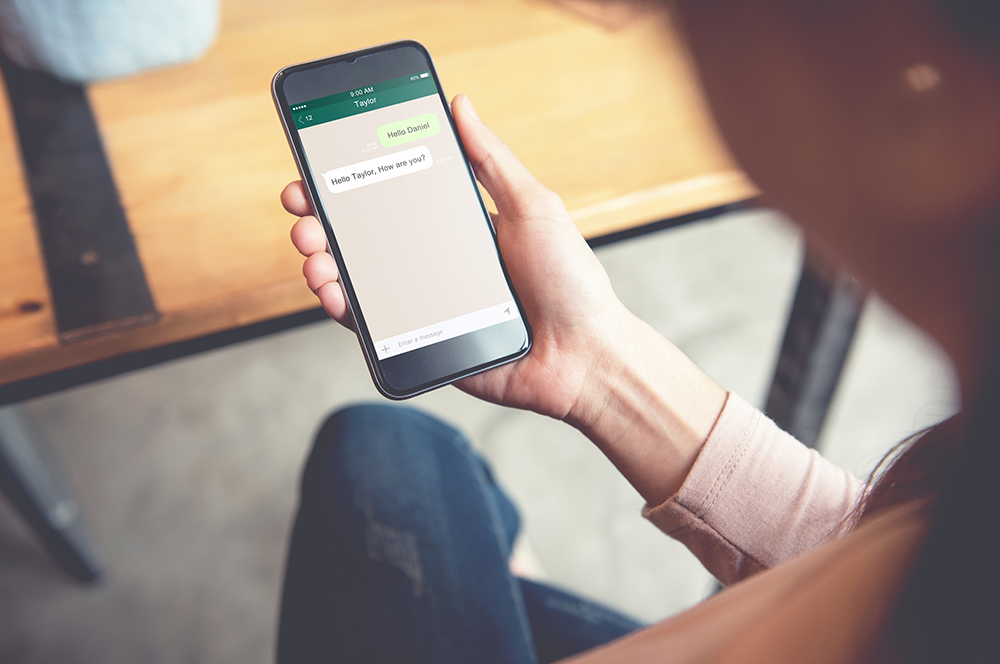
Sometimes information comes out of nowhere and reminds you that you really don’t know what it is that you don’t know. That’s pretty much how we feel about WhatsApp hacks.
The app has much wider functionality than just keeping the words you write to your friends away from the Facebook algorithm. Here are nine of the best WhatsApp tips, tricks and hacks.
#1 Hiding read receipts
Don’t want to seem too keen? Looking to keep an air of mystery? Have a tendency to read messages, space out into the void, mentally reply but not physically reply and then notice that you’ve left them on read for six hours? Well then, turning off read receipts is for you!
On iOS
- Open WhatsApp
- Tap on Settings
- Tap Account then Privacy
- Turn off the Toggle next to Read Receipts
On Android
- Open WhatsApp
- Tap on the vertical ellipsis in the top right corner
- Select Settings then Account
- Go to Privacy
- Toggle off Read Receipts
#2 Hiding ‘last seen online’
Sometimes when you say goodnight its not because you’re going to sleep, but because you’re simply done with this conversation. If you’re looking to lurk online, but not be lurked at then follow these steps to hide your ‘last seen online’ notifications. Surf TikToks until you fall asleep with your phone in one hand and a chicken nugget in the other without interruption.
On iOS
- Open WhatsApp
- Tap on Settings
- Tap Account then Privacy
- Go to Last Seen and change this to No one
On Android
- Open WhatsApp
- Go to Settings and select Privacy
- Go to Last Seen option under Who can see my personal info
- Change this to No one
#3 Formatting text on app
Be bold. Be fancy. Make mistakes.
Enclosing your text in asterisks will make that text bold.
This is *bold*
Enclosing your text in squiggles will cross it out.
This is ~a mistake~
Enclosing your text in underscores to make that text italic.
This is _italic_
#4 Stop phone from automatically saving to camera roll
External and expandable storage is disappearing from phones, so those precious 128GB must strictly be rationed for memes and cute pet pics. Save your storage for the dank, and to whatever else you get sent say "no thanks".
On iOS
- Open WhatsApp
- Enter Settings
- Turn off Media Visibility
On Android
- Open WhatsApp
- Enter Settings
- Turn off Media Visibility
#5 Hide message previews
You probably wouldn’t just hand your phone and messages over to anyone, so why would you want the content of your messages on show for anyone to see? Keep your shady dealings to yourself and hide message previews from your notifications.
On iOS
- Open WhatsApp and go to Settings
- Go to Notifications
- Disable Show Preview
On Android
- Open Settings on your phone
- Scroll down and tap on Apps or Applications
- Locate and tap on WhatsApp
- Tap Notifications
- Tap On the lock screen
- Toggle to Hide sensitive notification content
#6 Save important messages
Screenshots are great, and crucial for evidence based research, but if you really want to be able to throw someone’s words back in their face then save those messages forever on WhatsApp. The data may be unencrypted, but whoever is sealing their own crypt shan’t be burying the evidence with this feature.
On iOS and Android
- Find and long tap on the message you want to save
- Locate the Star shape and tap it
- Your message is now saved in Starred messages
#7 Unsending a risky text
If the bottom of the wine bottle took some liberties with your phone then fear not because you can erase the evidence. Unless they’ve already taken screenshots. We can’t help with that. You’re on your own.
On iOS and Android
- Find and long tap on the message you want to delete
- Locate the rubbish shape and tap it
- Select Delete message for everyone
#8 Turn videos into gifs
Capture your favourite few seconds caught on film and imprison them in an eternal time loop.
On iOS
- Open WhatsApp
- Go to a conversation and tap on the attachment symbol
- Scroll through to find your video
- Open the video and click on gif in the top right corner
- Trim your video as required
- Press send
On Android
- Open WhatsApp
- Go to a conversation and tap on the attachment symbol
- Scroll through to find your video
- Open the video and click on gif in the top right corner
- Trim your video as required
- Press send
#9 Access WhatsApp on your laptop
If you don’t want to be caught looking at your phone while you’re at work, then just don’t. Chat away with your mates and look like you’re concentrating solely on work by using the WhatsApp desktop app.
- Download the WhatsApp app to your laptop
- On your phone go to WhatsApp and Settings
- Select WhatsApp Web
- Open WhatsApp on your laptop, you should see a QR Code
- Tap the + on your phone and scan the QR Code with your phone camera
- You will be logged in to the desktop app.
Anula Wiwatowska
Offsite Editorial Lead | Instagram

Related Articles


